

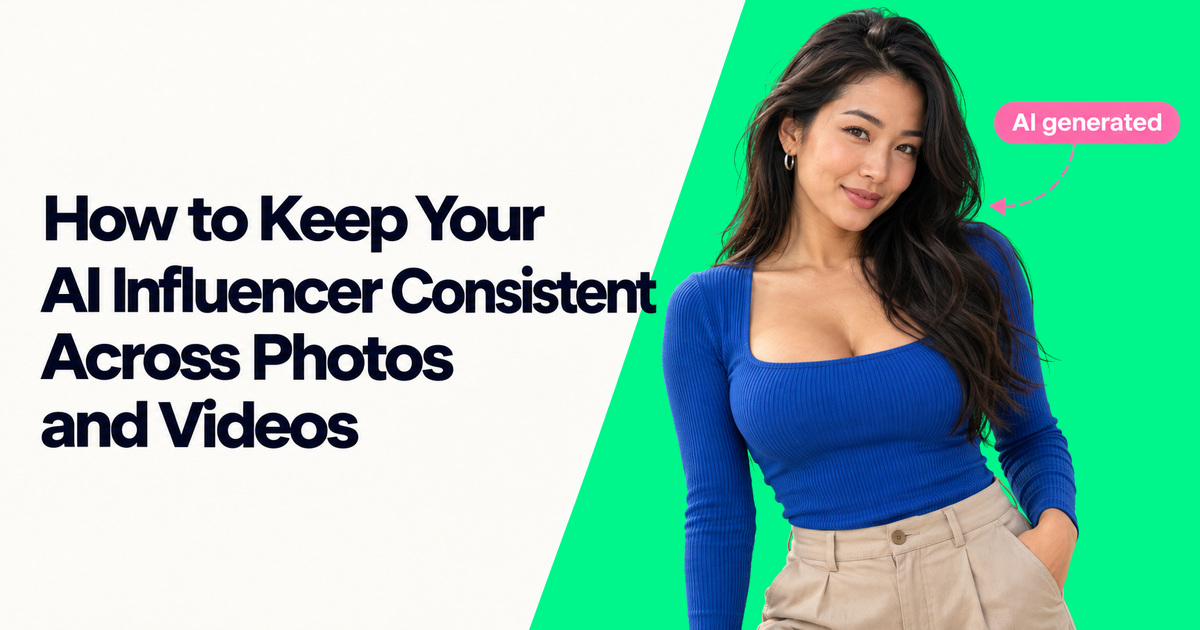
Your AI influencer looks convincing in a portrait. Then you create a wider photo, animate a head turn and add a talking video. Somewhere along the way, the same creator starts looking like three different people.
Keeping an AI influencer consistent across photos and videos means checking what happens between formats. A face that works from one angle may change when the camera moves. A hairstyle that looks natural in a still can shift during animation. A familiar portrait can feel unfamiliar once the voice and expressions arrive.
This guide follows a practical production sequence using Stonehill Creatorlab as the working environment: approve the photographs, test movement, review the talking avatar and only then prepare a content series. The goal is a recognizable creator across a complete set of posts.
Quick Answer
Start with an approved portrait and compare each new photo or video with that same identity. Approve the source image before animating it, introduce movement gradually and watch every finished clip from beginning to end. Check the face, hair, body, clothing and voice together. Keep the outputs that match, repair isolated presentation issues and regenerate content when the identity or anatomy changes.
Begin With a Small Cross Format Test
If you have not established the character yet, begin with our guide to creating a consistent AI influencer character. That covers the foundation: appearance, references and the traits that define the person.
Once those decisions are made, test whether the character survives the formats you actually want to publish. Before producing a month of content, prepare a small set:
- A clear portrait with a relaxed expression.
- A wider lifestyle photograph showing the upper body or full outfit.
- A short motion clip based on an approved image.
- A brief talking video using an approved portrait and the intended voice.
For an illustrative example, imagine Mira, a fictional adult lifestyle creator planning a city-weekend series. She needs a cafe photograph, an arrival clip and a short spoken recommendation. Mira is an invented example, not a customer testimonial or a reported product test.
Her first production question is simple: would someone who saw the cafe photograph recognize her immediately in the video? Answer that before adding more locations or generating a large batch.
Choose the Right Source Image for Each Shot
A useful reference portrait and a useful animation source serve different purposes. The portrait helps you judge identity. The animation source also needs to support the action you are requesting.
For a talking clip, choose a clear face, a comfortable pose and enough room around the head. For a subtle lifestyle movement, choose an image where the body and any visible hands already make sense. A hand that is ambiguous in a still deserves another look before it starts moving.
Stonehill Creatorlab’s persona creation interface offers appearance choices such as hair, eyes, skin tone, clothing style and body type, as well as reference upload for account holders. Those options help establish the starting look. They do not remove the need to review the resulting image.
Keep a clean photographic source separate from the finished cover or social graphic. Headline text, arrows and badges belong in the publication layout. For portrait animation, start from the approved portrait asset rather than a magazine cover containing that portrait.
Approve Camera Changes Before Adding Motion
Moving from a close portrait to a wider frame introduces new information. You can suddenly see shoulder width, posture, clothing fit and body proportions. Review those details before treating the image as the next version of the same person.
For Mira’s cafe photograph, compare the face with her approved portrait at a similar on-screen size. Then inspect the whole image. Does the relationship between her head, shoulders and torso remain plausible? Does her hair end in the right place? Do the visible hands belong naturally to the arms?
Make a separate check when changing the camera angle. Perspective will legitimately change how a face appears, so pixel-for-pixel matching is not the goal. Look for unexplained changes in the features that identify the person, especially when the eyes, nose or jaw suddenly seem to belong to someone else.
When an image feels wrong, reduce the number of changes in your next attempt. Keep the setting and outfit, but return to a more familiar angle. Once that works, try the more ambitious composition again.
Direct the Movement Without Redesigning the Person
For image-to-video work, let the approved image carry the appearance and use the motion direction to explain the action. Runway’s image-to-video guidance describes this division and recommends a high-quality input without visual artifacts. This is general production guidance, not a claim that Creatorlab exposes Runway’s controls or uses a particular model.
A modest first direction for Mira could be: “She gives a small smile and turns her head slightly toward the window. The camera stays still.” This is an illustrative direction to adapt to the controls available in your chosen workflow.
Start with one main action. If the clip works, increase the challenge gradually. Asking for a large head turn, walking, a moving camera and a lighting change in the same attempt makes it harder to understand which change caused a problem.
For a sequence with several locations, prepare separate approved shots. Avoid relying on a single elaborate generation to carry the character through every scene change.
Review the Whole Clip and Its Difficult Moments
A correct first frame does not establish that the whole video is consistent. Watch the clip once at normal speed for the overall impression, then inspect the moments where the face turns, a hand moves or something passes in front of the body.
Compare the start, midpoint and end with the source image. These checkpoints are a useful minimum, not a substitute for watching the intervening motion. A defect can appear briefly and disappear before the next checkpoint.
Pay particular attention to:
- Facial shape during turns, smiles and changes of expression.
- Eyes, teeth and the edges of the mouth as the face moves.
- Hairline, parting and strands where hair crosses the face.
- Hands, elbows and shoulders throughout gestures and occlusions.
- Neckline, seams and accessories that should remain stable within the shot.
Review the video at the size your audience will see, then enlarge suspicious moments. A tiny imperfection visible only under extreme magnification may matter less than a face that feels wrong during ordinary playback. An obvious anatomical defect remains a reason to withhold the clip.
If you publish short vertical content, our TikTok guide for AI influencers covers the wider content approach. Apply this continuity review before the clip enters that publishing workflow.
Give Talking Avatars a Separate Approval Pass
A talking avatar adds a second form of recognition: the voice. The face can remain familiar while an unexpected accent, pacing or delivery makes the character feel different.
Creatorlab’s Talking Avatars workflow lets creators write or generate a script, use the persona’s selected voice and animate a portrait. The resulting video appears in unpublished content, where it can be downloaded, scheduled or published.
Use that unpublished stage for review. Listen to the actual generated audio, including names and unusual words. Compare the delivery with the character’s established tone. Watch the mouth during speech and pauses, and check whether expressions still suit the portrait.
For Mira’s first spoken recommendation, a short sentence is enough to assess the voice and facial movement before committing to a longer script. Once approved, keep a note of the voice selection and the exact portrait used. If either changes, review the combination again.
When editing several clips together, listen across the cuts. A sudden volume jump or a different voice treatment can make the same character feel disconnected even when each individual clip looks acceptable.
Decide Whether to Keep Repair or Regenerate
Use a clear decision for each output rather than leaving a folder full of almost-approved alternatives.
Keep the asset when the identity is recognizable, anatomy is plausible and the shot communicates its intended idea. Natural changes in expression or lighting are part of useful content variety.
Repair a limited presentation issue when the identity is already correct. Examples include balancing the brightness of adjacent shots, adjusting speech volume or correcting a caption. Inspect the export again after the edit.
Regenerate when the face changes identity, the body deforms or a gesture creates fused or extra fingers. A color adjustment cannot fix a different jaw. A flattering crop should not become a way to hide a broken source that will be reused elsewhere.
If the source image is defective, replace it first and identify every clip made from it. Correcting one visible video while leaving the same source in the next week’s queue simply postpones the problem.
Keep Continuity Across a Content Series
After the test set works, expand it into a connected group of posts. Creatorlab’s Content Series starts with one persona and a topic, then builds a multi-day plan with scene ideas and a structure for captions, drafts and scheduling.
For Mira’s city weekend, the plan might move from arrival to a cafe visit and then an evening recommendation. Review the planned sequence before generating all its assets. If two posts describe the same outing, check whether the outfit, location and time of day should match. If the story moves to the next day, a deliberate outfit change is reasonable.
Keep a simple production record outside the individual prompts: the scene, source filename, resulting asset, review decision and intended post. Mark rejected assets clearly so they do not return by accident.
Then review the approved images and video thumbnails together. This catches a different problem from inspecting one file: a post that looks excellent alone but does not belong with the rest of the creator’s week. Our AI influencer content strategy guide can help give that week a coherent editorial purpose.
Schedule Only After the Final Export Is Checked
Production is not finished when a generation looks good inside a tool. Check the version that will actually reach the audience. Confirm the crop, captions, audio and opening frame after export, especially when a horizontal image becomes a vertical video.
The appeal of Stonehill Creatorlab here is the connected workflow: persona creation, generated content, talking avatars and publishing preparation can sit within the same product. You can organize production around a creator rather than repeatedly starting with an unrelated image.
Keep a human approval step between generation and scheduling. Creating a free account does not mean generation is free: Creatorlab’s current plans require a paid plan to generate, and publishing features and usage rights depend on the plan. Check those details before planning commercial content.
Also check the disclosure and content rules of the platform where you will publish. A visually consistent character still needs an accurate presentation and appropriate rights to any references used.
FAQ
Why does my AI influencer change when the video starts
Animation has to depict movement and angles beyond the still image. Begin by checking the source for unclear facial details or anatomy, then try a simpler action. Compare the full result with the original portrait before approving it.
Should I use the same image for every video
No. Use different approved source images when the content needs different scenes or framing. Compare each source with the same identity reference before animation so variety does not quietly become a change of person.
Can a better prompt fix every consistency problem
No. The input image, requested motion and generated result all matter. If repeated attempts fail, reconsider the source or simplify the shot. A longer description is not automatically a more reliable instruction.
Does Stonehill Creatorlab guarantee an identical face in every output
Do not treat generation as a guarantee of perfect identity preservation. Creatorlab provides tools for creating personas and producing content; you should still review photographs and complete videos before publishing.
What should I check before scheduling a talking video
Confirm the approved portrait and voice, listen for pronunciation and level changes, inspect facial movement throughout the clip and review the final crop and captions. Keep any uncertain version unpublished until it passes.
Your Next Production Test
Choose one approved persona and one short content idea. Make the portrait, the wider scene and the motion clip belong together before extending the idea into a series. Add the talking avatar only after its face and voice feel like the same creator.
That small test gives you a practical standard for the next production. When the images and videos pass together, you have a repeatable basis for creating more content in Stonehill Creatorlab without approving each file in isolation.